



Attaching Photos:
iOS
1) Go create your report, view the PDF and got to 'email' it, your default email message will then appear and you will see the PDF or Gas Certificate image.

2) Press and hold anywhere in the email body (the email body is anywhere below the subject line where you would normally type an email message) after pressing hold an option box shows up like below.
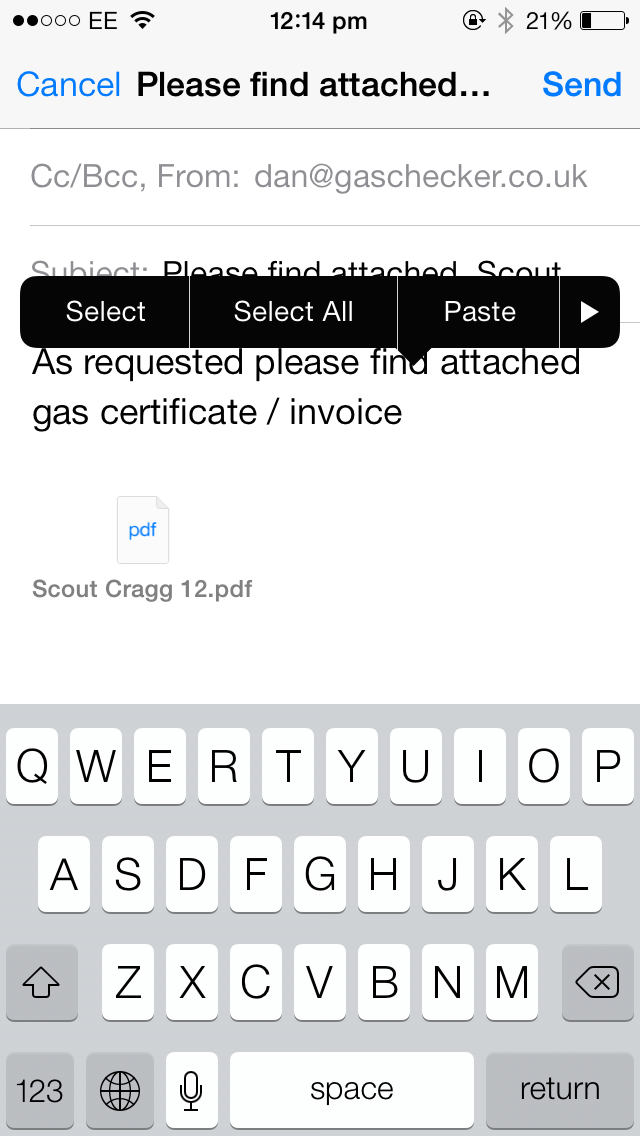
3) Press the arrow button on the right hand side of the black box, this then shows a hidden option of 'add photo or video' you will then be directed to camera roll where you can select the image or video. iPad users will see this option straight away.

4) Now press send, it will ask you what file size you would like, it's always best to choose small, that way it won't take up to much data and won't get caught up as spam.

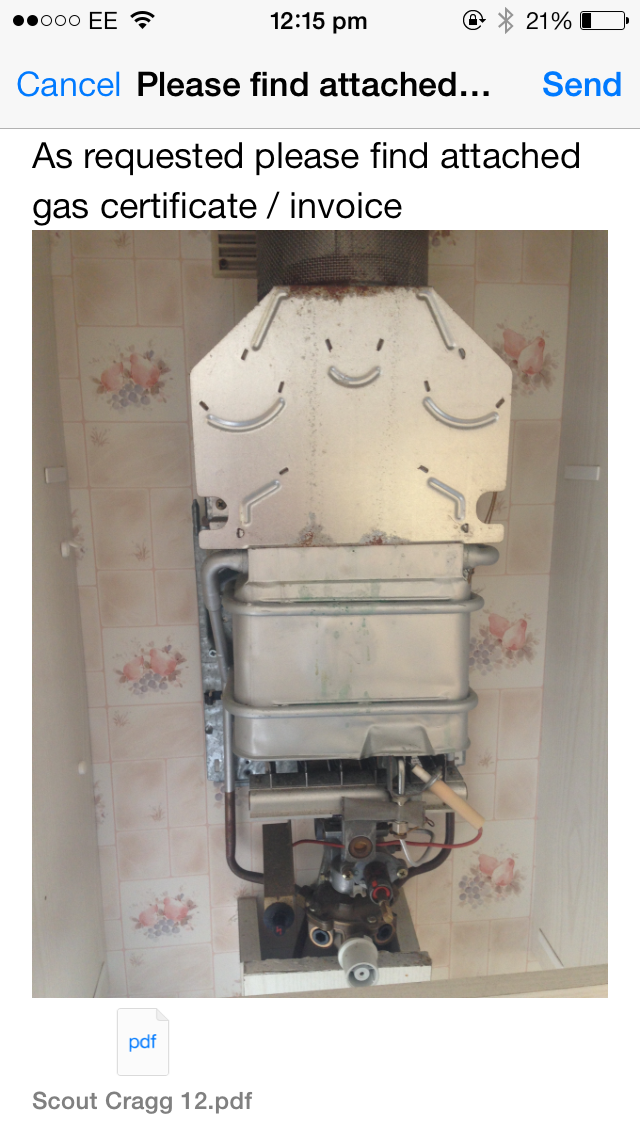
5) The image is now attached in the same email as your Gas Report.
Android
Android is more or less the same but in the email page you can press your device default options button (usually bottom left) then a few options appear, 'Add Picture' will be the top option, then simply follow the screens to choose your picture...the rest is easy.
 Enter your email for SUBSCRIBE!!!
 Thanks for contact